
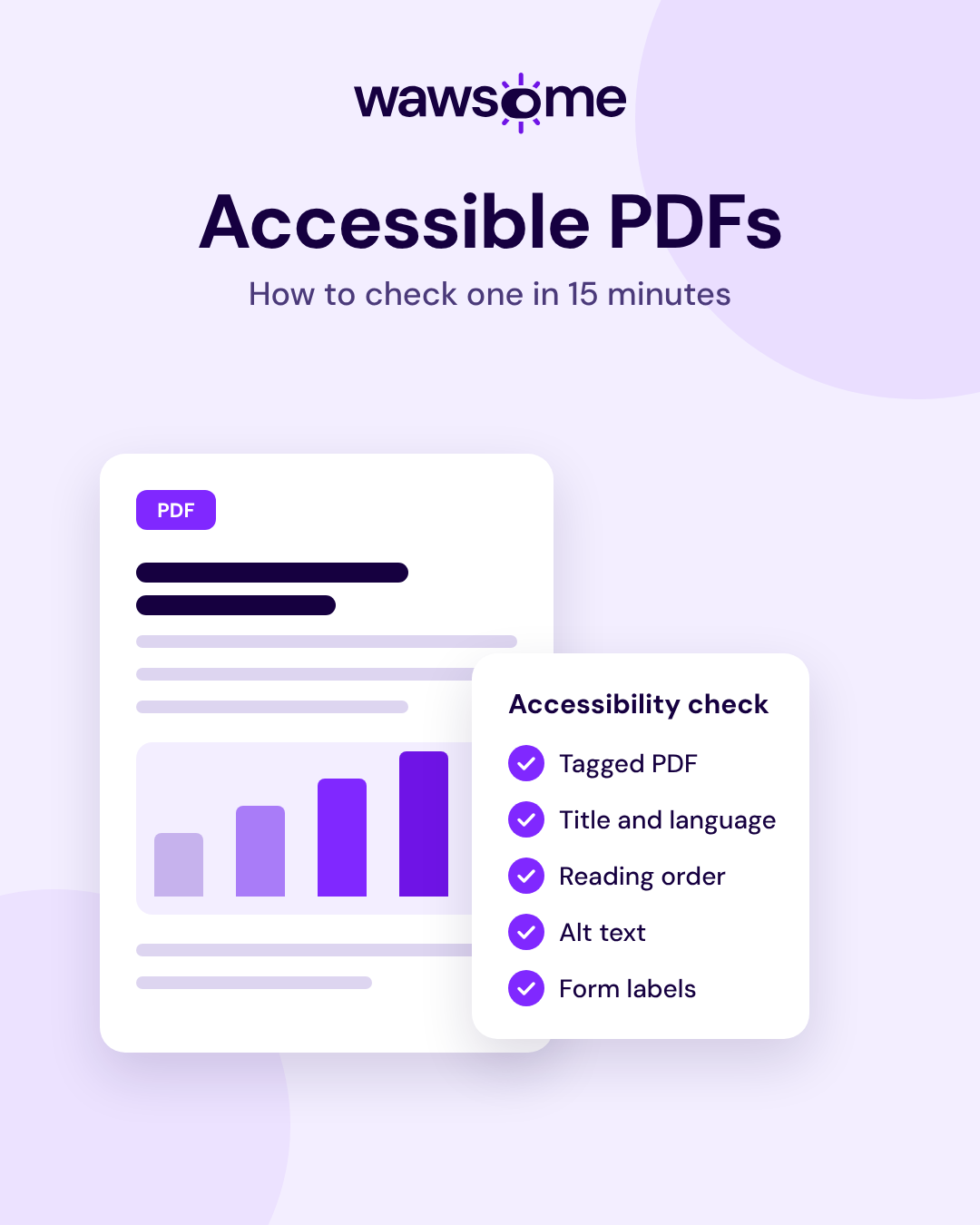
Accessible PDFs: how to check a PDF in 15 minutes and what to fix first
An accessible PDF is a tagged PDF that people can use with a screen reader, a keyboard or zoom. It has a title, a set language, a logical reading order, real headings, alt text on images, labelled form fields and tables with header cells. You can check most of this in about 15 minutes with an automated checker and a few manual tests.
Why it matters: PDFs often hold the things people need to act on, like invoices, contracts, forms, price lists and reports. If the file is a flat scan or has no tags, a screen reader user may hear nothing at all, or the text in the wrong order.
Key takeaways:
- Check three basics first: is the PDF tagged, does it have a title and is the language set.
- If you can't select the text, the PDF is a scanned image and needs text recognition before anything else.
- Automated checkers find missing tags and alt text, but they can't judge reading order or whether alt text makes sense.
- Fix in this order: untagged or scanned files, then forms, then reading order and headings, then images and tables.
- The cheapest fix is in the source file. A well-built Word document exports to a much better PDF.
Why does PDF accessibility matter now?
PDFs are no longer outside the rules. The European Accessibility Act excludes only office files, PDFs included, that were published on a website before 28 June 2025 (Directive (EU) 2019/882, Article 2(4)(b)). If your company falls under the EAA, the PDFs you publish from that date on are part of what your site has to make accessible.
Public sector bodies have had a similar rule for longer. The Web Accessibility Directive covers office files published after 23 September 2018, and older ones too when people need them to complete an administrative process (Directive (EU) 2016/2102). Each country turns these directives into its own law, so read our European Accessibility Act guide for how the obligations work.
The standard is the same one that applies to web pages. The W3C's WCAG2ICT guidance explains how WCAG 2.2 applies to non-web documents such as PDFs, and the European standard EN 301 549 has a dedicated section for documents.
The reason behind all of this is simple. A person who is blind, has low vision or can't use a mouse needs the same contract, invoice or form as everyone else. If the PDF doesn't work for them, they can't sign, pay or apply on their own.
What makes a PDF accessible?
A PDF is accessible when its content is tagged in a structure that assistive technology can read, in the right order, with text alternatives for anything visual. Tags work like the HTML behind a web page. They tell a screen reader "this is a heading", "this is a list", "this is a table header".
These are the parts to look for, with the WCAG 2.2 success criterion each one supports:
- Tags: without them, assistive technology has no structure to work with (1.3.1 Info and Relationships).
- Document title: screen readers announce it first, so people know which file they opened (2.4.2 Page Titled).
- Document language: the screen reader picks the right voice and pronunciation (3.1.1 Language of Page).
- Reading order: text is read in the order a sighted reader would follow (1.3.2 Meaningful Sequence).
- Headings: people jump between sections instead of listening to everything (1.3.1 Info and Relationships).
- Alt text: images, charts and logos with meaning get a text description; decorative ones are skipped (1.1.1 Non-text Content).
- Tables with header cells: each value is read with its row and column header (1.3.1 Info and Relationships).
- Link text: links say where they go, not "click here" (2.4.4 Link Purpose).
- Form fields with labels: each field says what to type and can be reached with the keyboard (3.3.2 Labels or Instructions, 4.1.2 Name, Role, Value).
- Contrast: text stands out from the background, at least 4.5:1 for normal text (1.4.3 Contrast Minimum).
- Real text, not images of text: text can be read aloud, enlarged and searched (1.4.5 Images of Text).
You will also see PDF/UA (ISO 14289). It is the technical standard for accessible PDF files. Its second part, PDF/UA-2, was published in 2024 (ISO 14289-2:2024). WCAG tells you what the reader needs; PDF/UA tells the file how to deliver it.
How to check if a PDF is accessible in 15 minutes
You need Adobe Acrobat Pro or a free checker, plus a screen reader. The times below are for a short document of up to about 10 pages.
1. Check the document properties (2 minutes)
Open the PDF and go to File > Document Properties. Look at three things:
- Tagged PDF: on the Description tab it should say Yes. If it says No, the file has no structure and the rest of the checks will fail.
- Title: a real title should be filled in, and on the Initial View tab, Show should be set to Document Title.
- Language: on the Advanced tab, the language should match the document, for example English.
2. Try to select the text (1 minute)
Drag your cursor over a paragraph. If you can't select single words, the page is an image, usually a scan. A screen reader will read nothing. The file needs text recognition (OCR) and full tagging before any other fix.
3. Run an automated check (3 minutes)
In Acrobat Pro, select All tools > View more > Prepare for accessibility, then Check for accessibility. The report marks each rule as passed, failed or needing a manual check.
On Windows you can also use PAC, the free PDF Accessibility Checker, which tests against PDF/UA and WCAG. Treat every "needs manual check" result as a task, not a pass. Acrobat itself says the reading order rule has to be verified by hand.
4. Check reading order and headings (4 minutes)
Open the Tags or Reading Order panel and compare it with the page. Headings should be tagged as headings, in order, without jumps from level 1 to level 3. Multi-column layouts, sidebars and footnotes are where the order usually breaks. For long documents, check that bookmarks exist so people can jump to sections.
5. Check images, tables, links and forms (3 minutes)
- Images: every meaningful image has alt text that describes its purpose. Decorative lines and backgrounds are marked as artifacts so they're skipped.
- Tables: header cells are tagged as headers, and tables aren't built from tabs and spaces.
- Links: the text says where the link goes.
- Forms: press Tab through the form. Every field should get focus in a logical order and have a label that says what to enter.
6. Listen to it (2 minutes or more)
Open the file in Acrobat Reader with a screen reader, such as NVDA on Windows (free) or VoiceOver on a Mac. Listen to the first page and move by headings. You should hear the title, the headings in a sensible order and a description for each image. If it sounds confusing to you, it will be confusing to the people who rely on it.
For a wider look at screen reader testing, see our guide to testing with screen readers.
What should you fix first?
Fix what stops people completely before what only slows them down. A simple order that works for most documents:
- Scanned or untagged files. Nothing else can be read until the text is real and tagged. If the document matters, consider rebuilding it from the source file instead of patching the scan.
- Forms. An unlabelled field stops someone from applying, paying or signing. Labels, tab order and error messages come next.
- Title and language. Quick to fix and they affect every page.
- Reading order and headings. Content read out of order can change its meaning, for example a price read next to the wrong product.
- Images and charts. Add alt text to everything that carries information. For complex charts, put the key numbers in the text too.
- Tables. Mark header cells so each value is read with its header.
- Contrast and small details. Low-contrast text, link text and bookmarks.
When you have many files, start with the ones people need to act on: forms, contracts, invoices, product and price information, and anything linked from a key page of your site.
Why is it easier to fix a PDF at the source?
Most PDF problems start in the file it was made from. Fixing tags in Acrobat is slow and has to be redone every time the document changes. Fixing the Word, PowerPoint or InDesign file once means every new export comes out right.
In Word, that means:
- Use the built-in heading styles instead of bold, larger text.
- Add alt text to images and mark decorative ones as decorative.
- Build tables with the table tool and set a header row.
- Write link text that says where the link goes.
- Run Review > Check Accessibility before you export (Microsoft Support guide).
- Export with Save as PDF and keep the option to include document structure tags turned on. Printing to PDF throws the tags away.
One more question is worth asking: does this need to be a PDF at all? Information that people only read, like an FAQ or a policy, is often easier for everyone as a normal web page.
Common PDF accessibility mistakes
- Treating a passed automated check as the finish line. Checkers can't judge reading order or whether alt text makes sense. Always do the manual checks and listen to the file.
- Running auto-tag and leaving it there. Automatic tagging is a starting point. Review the tags, headings and reading order it created.
- Alt text like "image1.png" or "chart". Describe what the image shows and why it's there, for example the trend a chart proves.
- Scanning a signed paper document. Use OCR at minimum. Better: publish the accessible original and keep the signed scan for your records.
- Building tables with tabs and spaces. Use a real table with a header row in the source file.
- Fixing the PDF but not the source. The next export brings every problem back. Fix the Word or design file.
How Wawsome helps with accessible PDFs
Our PDF & Digital Document Accessibility Testing is done by people, not only by a checker. Our experts open your documents with JAWS, NVDA, VoiceOver, TalkBack and braille displays, and check them against WCAG 2.2 and EN 301 549.
You get an accessibility audit report that lists each issue with its location, the impact on users, the WCAG criterion, a priority and a recommended fix. We help your team decide what to fix first, and re-testing after the fixes is included.
To be clear about scope: the Wawsome accessibility widget improves how visitors use your web pages, but it does not fix PDF files. Documents need to be fixed in the file itself. If you work in the public sector, our guide to the accessibility statement for public institutions explains how to report documents that aren't accessible yet.
Conclusion
An accessible PDF is tagged, titled, in the right language and readable in the right order, with alt text, labelled fields and real tables. Fifteen minutes with a checker and a screen reader shows you where a file stands. Fix scanned files and forms first, then fix the source so the next export is right.
Have many documents, or ones that people must fill in or sign? Talk to an expert about testing your documents.
Frequently asked questions
What makes a PDF accessible?
A PDF is accessible when it is tagged and people can use it with a screen reader, keyboard or zoom. In practice that means a document title, a set language, a logical reading order, real headings, alt text on meaningful images, tables with header cells, clear link text and labelled form fields. The text must be real text, not a scanned image.
Is a PDF accessible if it passes the Acrobat accessibility check?
Not necessarily. The automated check finds missing tags, alt text and other technical gaps, but it can't tell whether the reading order makes sense or whether the alt text is useful. Acrobat marks some rules as needing a manual check. Treat a pass as a good start, then check the order and listen to the file with a screen reader.
Can a scanned PDF be accessible?
Only after work. A scan is an image, so a screen reader finds no text in it. Text recognition (OCR) turns the image into text, and then the file still needs tags, a reading order and alt text. For important documents, it's usually faster and more reliable to publish an accessible version made from the original file.
Do PDFs fall under the European Accessibility Act?
They can. The EAA excludes office files, such as PDFs, published on websites before 28 June 2025. Files published from that date by companies in scope are not excluded. Public sector bodies follow the Web Accessibility Directive, which covers office files published after 23 September 2018. Check your national law for the details that apply to you.
What is PDF/UA?
PDF/UA (Universal Accessibility) is the ISO standard for accessible PDF files, published as ISO 14289. It sets the technical rules a PDF must follow so assistive technology can read it reliably. The second part, PDF/UA-2, was published in 2024. WCAG describes what users need; PDF/UA describes how the file delivers it.
Can an accessibility widget make my PDFs accessible?
No. A widget works on the web pages of your site, not inside PDF files that people download or open. Accessible PDFs have to be fixed in the file itself, ideally in the Word or design file they were made from. Manual testing with screen readers shows what still needs work.
Sources
- Directive (EU) 2019/882, European Accessibility Act (EUR-Lex)
- Directive (EU) 2016/2102, Web Accessibility Directive (EUR-Lex)
- Guidance on Applying WCAG 2.2 to Non-Web ICT, WCAG2ICT (W3C)
- ISO 14289-2:2024, PDF/UA-2 (ISO)
- Create and verify PDF accessibility (Adobe Help)
- PAC PDF Accessibility Checker (axes4)
- Make your Word documents accessible (Microsoft Support)