
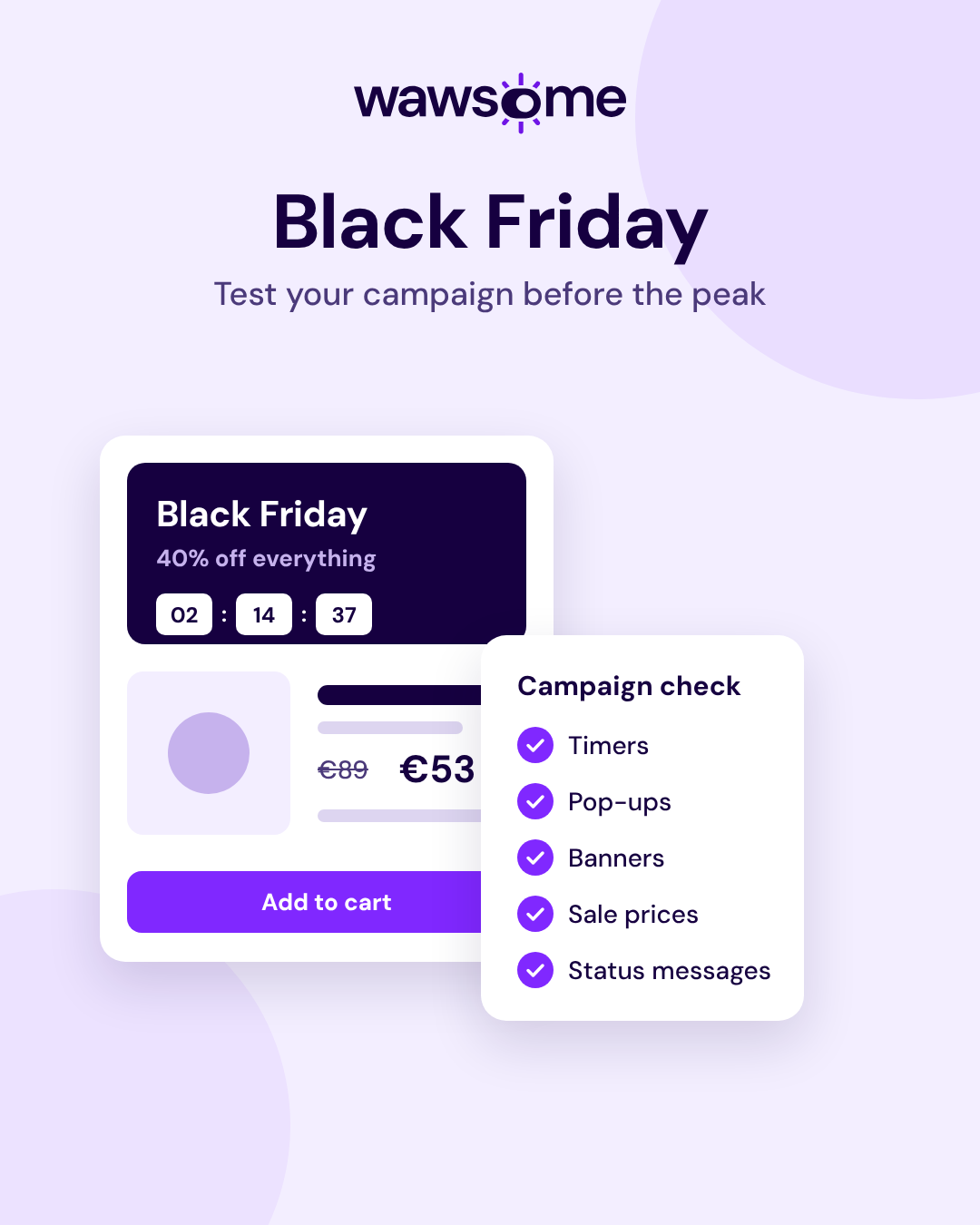
Black Friday accessibility: test your campaign before the peak
Black Friday campaigns add countdown timers, pop-ups, moving banners and sale prices on top of your usual shop. These features are often added quickly by marketing tools, after the last accessibility check, and they can stop a customer from buying. Test them with a screen reader before 27 November, and fix the worst blockers first.
If you haven't checked the basics of your checkout yet, start with our 10-minute checkout check. It covers form labels, buttons and error messages. This guide is the next step: the campaign features that break most often, a 20-minute screen reader test and what you can still fix before the peak.
Key takeaways:
- Timers, pop-ups and moving banners often go live after your last accessibility check.
- Check the checkout basics first, then test the campaign path with a screen reader on a computer and on a phone.
- The features that break most often are cart timers, pop-ups, banners, stock messages, sale prices and CAPTCHAs.
- Fix settings and content before the peak, and plan code changes for after it.
- E-commerce services have been covered by the European Accessibility Act since 28 June 2025.
Why do Black Friday campaigns need their own accessibility test?
Your shop may have passed a check months ago. Campaign features change that. Timers, pop-ups, banners and badges usually come from themes, apps or marketing scripts, and they often go live after your last test.
Online shops also start with more detectable problems than most sites. In the WebAIM Million 2026 report, home pages in the Shopping category had an average of 71.0 detected errors, 26.6% more than the average home page.
Scanners only catch part of the problem. A scanner won't tell you that a countdown timer empties the cart of a customer who needs more time, or that a screen reader stays silent when "Code applied" appears. The W3C also notes that no tool alone can tell you whether a site meets accessibility standards. A person has to try the task.
Which path should you test?
Follow the path a customer takes from your campaign to a confirmed order:
- Campaign landing page or banner. Can you pause it, and does the banner image have alt text that includes the offer?
- Pop-ups. The newsletter or discount pop-up that opens when someone arrives.
- Product page with a sale price. Is it clear which price applies?
- Cart. The countdown timer, the stock message and the discount code.
- Login or guest checkout. Including any CAPTCHA or one-time code.
- Payment and confirmation. The bank's confirmation window, the order page and the email.
If you offer both, test as a guest and as a logged-in customer. Use your staging site or a test payment method so you don't place real orders.
How do you run a 20-minute screen reader test?
Do the keyboard check from our 10-minute checkout article first. Then go through the campaign path three more times:
- Screen reader on a computer (about 10 minutes). Use NVDA, which is free for Windows, or VoiceOver, which is built into every Mac (press Cmd+F5). Listen for the offer in the campaign banner, sale prices that make clear which price applies, stock, timer and discount messages being announced when they change, and pop-ups that take focus when they open and give it back when they close.
- Screen reader on a phone (about 5 minutes). Turn on VoiceOver on an iPhone or TalkBack on Android and swipe through the landing page, product page and cart.
- Zoom (about 5 minutes). Zoom the browser to 200%, then to 400%. Banners, timers and pop-ups must not cover the content or the buttons.
Every time you get stuck, write down the page, what you did, what happened and what should have happened. That list is your fix list.
If you have never used a screen reader, you will be slower than people who use one every day. That's fine. This test is meant to find the blockers, not every issue. Our screen reader testing tutorial explains the basic commands.
Which Black Friday features break most often?
Check these campaign features first, each against its WCAG 2.2 success criterion. Basic checkout issues, such as missing field labels and unclear errors, are covered in our 10-minute checkout check.
- Countdown timers and reserved carts. The cart expires before a slower customer can finish, with no warning and no way to get more time. 2.2.1 Timing Adjustable, level A.
- Moving banners and carousels. Slides change for more than 5 seconds and there is no pause button. 2.2.2 Pause, Stop, Hide, level A.
- Discount and newsletter pop-ups. Focus stays on the page behind the pop-up, or the pop-up can't be closed with the keyboard. 2.1.2 No Keyboard Trap and 2.4.3 Focus Order, level A.
- "Only 2 left" and "Code applied" messages. They appear on screen, but a screen reader says nothing. 4.1.3 Status Messages, level AA.
- Sale prices. The old price is only crossed out visually, so a screen reader reads two prices without saying which one applies. 1.3.1 Info and Relationships, level A.
- Campaign images with the offer written inside. The alt text is empty or just says "banner", so the discount is invisible to screen reader users. 1.1.1 Non-text Content, level A.
- Sale badges and promo text. Light text on bright colors that is hard to read. Low contrast was the most common failure in the WebAIM Million 2026, found on 83.9% of home pages. 1.4.3 Contrast (Minimum), level AA.
- Login, CAPTCHA and one-time codes. A puzzle or memory test with no alternative, or a code field that blocks pasting. 3.3.8 Accessible Authentication (Minimum), level AA, new in WCAG 2.2.
- Address forms. The customer has to type the same address twice. 3.3.7 Redundant Entry, level A, new in WCAG 2.2.
What can you still fix before the peak, and what can wait?
Many shops freeze their code a few weeks before Black Friday. Split your fix list into two groups.
Fix before the peak. These are mostly settings, content or small front-end changes:
- Stop banners from rotating on their own, or add a visible pause button.
- Make campaign pop-ups close with the Escape key and return focus to where it was. Or don't show them on cart and checkout pages at all.
- Turn off cart timers, make them longer, or warn customers before the time runs out and let them extend it.
- Write alt text for campaign images. If the offer is written inside the image, the alt text must say it too.
- Add hidden text such as "Original price" and "Sale price" so screen readers can tell the two prices apart.
- Fix the contrast of sale badges and promo text.
Plan for after the peak. These need development and testing:
- Announce cart, stock, timer and discount updates to screen readers.
- Manage focus in the cart, in dialogs and in the payment window.
- Offer a login option without puzzles or memory tests, and allow pasting one-time codes.
- If the payment page belongs to a payment provider, send them your findings and ask for their accessibility information.
After each fix, test the whole path again. A fix on one step can break the next one.
What does EU law expect from online shops?
Since 28 June 2025, the European Accessibility Act covers e-commerce services provided to consumers. For services, there is no transition period. Microenterprises that provide services, meaning fewer than 10 employees and no more than 2 million euros in annual turnover or balance sheet total, are exempt.
Each EU country applies the Act through its own national law, and national authorities handle complaints and checks. In the Netherlands, for example, the ACM says that consumers can report problems and that it also picks websites and apps to investigate itself.
In practice, teams test against WCAG at level AA, through the European standard EN 301 549. Read our European Accessibility Act guide for the details. This article describes the obligations in general and is not legal advice.
When should you bring in accessibility experts?
A self-test finds the obvious blockers. It won't cover every combination of screen reader, browser and device, every logged-in state, or how people who use assistive technology every day actually shop.
In Wawsome's End-to-End User Journey Testing, our experts test complete tasks such as searching, choosing a product, paying or recovering an account. They use the keyboard, JAWS, NVDA, VoiceOver, TalkBack and braille displays. You get journey maps, the steps where customers get stuck, the impact of each blocker and a prioritized list of fixes, in an audit report your team can work from. Re-testing after fixes is included, and we help your developers decide what to fix first.
For online shops, our E-commerce Checkout & Conversion Flow Audit goes deeper into product discovery, variation selection, cart, promotions, checkout, payment errors and order confirmation.
Want a quick first look? Run a free accessibility scan of your product page to catch the issues software can find. Then talk to an expert about testing your customer journeys.
Frequently asked questions
Does the European Accessibility Act apply to my online shop?
If you sell products or services to consumers in the EU online, it most likely does. E-commerce services have been covered since 28 June 2025. Microenterprises that provide services are exempt. Check your national law and, if in doubt, ask a lawyer.
How is this different from a quick checkout check?
Our 10-minute checkout check covers the basics every checkout needs: field labels, buttons and error messages, tested with the keyboard. This test adds the features your campaign brings in and checks them with a screen reader and on a phone. Do both.
Do I need to test on mobile too?
Yes. Many people shop on their phones, and screen readers work differently there. Test the product page and checkout with VoiceOver on iPhone and TalkBack on Android.
What if my payment page comes from a payment provider?
It is still part of your customer's journey. Test it like any other step, send the problems you find to your provider and ask for their accessibility information.
How often should I test my checkout?
After every release that changes the cart, checkout or payment, and before every big campaign. Regular automated scans between tests help you catch new issues early.
Sources