
Custom Text, Title & Page Colors: The Accessibility Feature Your Website Visitors Actually Need
Why Website Color Flexibility Is an Accessibility Requirement
An estimated 246 million people worldwide live with moderate to severe visual impairment, and millions more deal with situational challenges — screen glare, eye fatigue, photosensitivity, or dyslexia — that make fixed website color schemes uncomfortable or unreadable. Yet most websites offer visitors zero control over how colors are displayed. That's not just a usability gap; under the European Accessibility Act (EAA) and WCAG 2.1, it's increasingly a compliance risk.
We built our new Color Customization controls — Text Color, Title Color, and Page Color — to change that. Three independent settings, eight color options each, and one click to apply. No developer needed.
What WCAG Says About Text and Background Colors
WCAG 2.1 Success Criterion 1.4.3 (Contrast Minimum) requires a contrast ratio of at least 4.5:1between normal text and its background, and 3:1 for large text, at Level AA. This is the baseline incorporated into the EAA via EN 301 549, which became enforceable across all 27 EU Member States from June 28, 2025.
Going further, WCAG SC 1.4.8 (Visual Presentation) at Level AAA explicitly recommends that websites allow users to select their own foreground and background colors. Our Color Customization feature directly implements this principle — giving every visitor the power to create a contrast ratio that works for their specific visual needs, even when a site's default design doesn't fully meet the standard.
How Our Text Color, Title Color & Page Color Controls Work
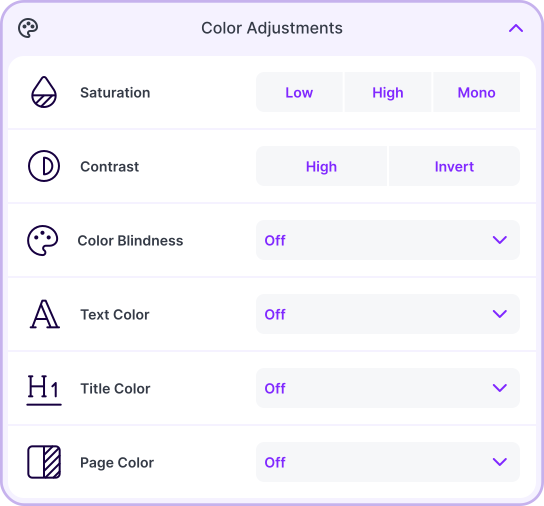
These three controls sit independently in the Color Adjustments section of our widget:
Text Color — Changes the color of all regular body text across the page. Users who need stronger contrast, prefer warmer tones to reduce blue-light strain, or find default black text too harsh on bright backgrounds can adjust this in seconds.
Title Color — Sets the color of headings and titles separately from body text. This matters because users with low vision or ADHD often navigate pages by scanning headings. A distinct, high-contrast title color creates a clearer visual hierarchy without touching the body text at all.
Page Color (Background) — The single biggest driver of visual comfort on any page. Users with Irlen Syndrome, photosensitivity, or chronic migraines consistently report that switching from a white background dramatically reduces eye strain and reading difficulty.
To use any of these controls:
- Click the Wawsome accessibility icon on the page
- Open the Color Adjustments section
- Click Text Color, Title Color, or Page Color
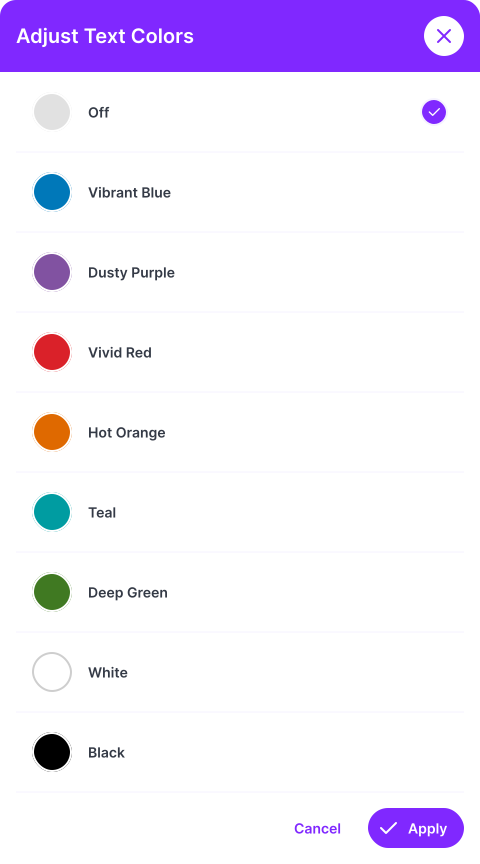
- A modal opens with the full color palette — select your preferred color
- Click Apply — the change is instant, no page reload required
Settings can be reset at any time with the Reset Settings button or the keyboard shortcut ⌥ + R.
Which Accessibility Color Options Are Available — and Why Each Matters
We offer eight colors across all three controls:
Vibrant Blue - Strong contrast on light or white backgrounds; widely usable across visual profiles
Dusty Purple - Softer alternative to black text; easier on light-sensitive or fatigued eyes
Vivid Red - High-energy option for page backgrounds where text contrast is set separately
Hot Orange - Warm, high-visibility tone useful in low-light or low-contrast environments
Teal - Mid-tone that maintains solid contrast on both light and dark backgrounds
Deep Green - Low-fatigue option for extended reading sessions
White - Ideal as text or title color on dark page backgrounds
Black - Maximum contrast for text and titles; the default high-contrast choice
Because all three controls are independent, users can build combinations that precisely serve their needs — for example, deep green titles, black body text, and a dusty purple page background. That's 512 distinct combinations from a single, lightweight panel.
Who Benefits from User-Controlled Color Accessibility
These controls aren't limited to users with clinical diagnoses. The people who benefit most include:
- Low vision users who need stronger contrast between text and background than a site's default design provides
- Users with Irlen Syndrome — affecting up to 14% of the general population — for whom white backgrounds cause genuine visual discomfort
- People with dyslexia, many of whom find that changing the background color (e.g., to a soft warm tone) measurably improves reading fluency
- Older adults, whose contrast sensitivity naturally declines with age — roughly 1 in 3 people over 65 experience some form of visual impairment
- Users with photosensitivity or chronic migraines who need to avoid high-brightness backgrounds
- Anyone experiencing temporary eye strain from extended screen use, who can reduce glare in seconds without leaving the page
Does Custom Color Help with EAA and WCAG Compliance?
Yes — but it's important to understand what it covers and what it doesn't. Offering user-facing color controls supports WCAG SC 1.4.3, 1.4.6, and 1.4.8, and demonstrates active alignment with the EAA's "design for all" principle. It's one of the most direct ways to ensure that users can always achieve the contrast ratio they need, regardless of a site's default palette.
However, color customization tools supplement — they don't replace — underlying accessible design. Your site still needs to avoid using color as the only means of conveying information (WCAG SC 1.4.1), and interactive states like hover and focus must maintain their own contrast ratios independently. We always recommend pairing the widget with a regular accessibility audit to catch issues that user-facing tools can't resolve on their own.
Common Color Accessibility Mistakes to Avoid on Your Website
Even with user color controls in place, teams should watch for:
- Color as the sole indicator: Red/green error states need icons or text labels — color alone isn't sufficient under WCAG 1.4.1
- Failing interactive state contrast: Hover, focus, and disabled states must independently meet contrast minimums
- Assuming dark mode equals accessible: Dark backgrounds with insufficiently light text fail WCAG just as easily as their light equivalents
- Treating compliance as static: Website updates routinely introduce new color contrast regressions — ongoing monitoring matters as much as the initial fix
See Color Customization in Action
The best way to understand what these controls do is to watch them work on a real website.
Book a demo and we'll show you the full widget live — or start a 7-day free trial and let your own visitors experience it today.
FAQs
What is Text Color customization in a web accessibility widget?
Text Color customization lets users change the color of all regular body text on a webpage to improve contrast or reduce eye strain — without requiring any code changes to the site.
Why would someone need to change a website's background color?
Users with photosensitivity, Irlen Syndrome, migraines, or general eye fatigue often find white or high-brightness backgrounds physically uncomfortable. Switching to a softer background color — like teal, deep green, or dusty purple — can significantly reduce glare and improve reading conditions.
Does allowing users to change colors help with WCAG compliance?
Yes. WCAG SC 1.4.3 requires minimum contrast ratios for text and backgrounds, and SC 1.4.8 (AAA) specifically recommends letting users choose their own foreground and background colors. Providing these controls directly supports both standards and EAA alignment.
Can Text Color, Title Color, and Page Color be changed independently?
Yes. All three controls are fully independent. Users can set a different color for body text, headings, and the page background at the same time, creating the exact combination that works for their visual needs.
What color options are available for text and background customization?
We offer eight options: Vibrant Blue, Dusty Purple, Vivid Red, Hot Orange, Teal, Deep Green, White, and Black — covering the broadest range of contrast needs and personal preferences.
How do I apply color changes with the Wawsome accessibility widget?
Open the widget, go to Color Adjustments, click Text Color, Title Color, or Page Color, select your color from the modal that opens, and click Apply. Changes take effect instantly and can be reset at any time.