
To add Wawsome to Webflow, paste your Wawsome code in Site settings > Custom code > Head code, save, and publish your site. The widget then loads on every page.
Before you start
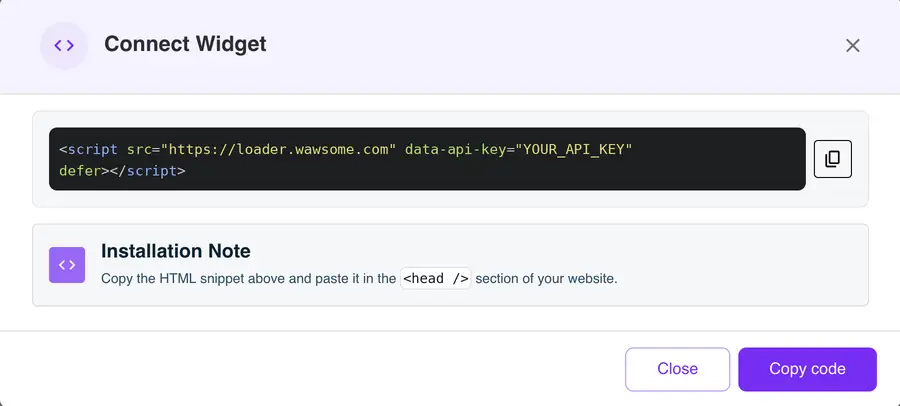
- A Wawsome account with your website added. Get your code in the dashboard: go to Websites, select your site, click Install Widget, then Copy code in the Connect Widget window.
- A Webflow site with an active Site plan, or a paid Workspace (Core, Growth, Agency or Freelancer). Free sites can't use custom code.
How to add Wawsome to Webflow
- Open your site in Webflow and go to Site settings.
- Open the Custom code tab.
- Paste your Wawsome code in Head code. Paste only the code you copied. Don't add html, head or body tags around it.
- Click Save changes.
- Publish your site. Webflow only adds custom code to the live site after you publish.
Check that it works
Open your published site in a private window and look for the Wawsome button. You'll also see it in preview mode. Open it and try one setting.
What the widget does and doesn't fix
- Visitors can change text size, contrast, spacing and more, and use reading tools.
- AI adds alt text to images that have none. You can edit every label.
- Issues in your design or CMS content, like skipped heading levels or vague link text, need a fix in Webflow. A scan lists them by page.
Learn more: Run a free scan · Accessibility audits
Webflow accessibility FAQ
Do I need a paid Webflow plan?
Yes. Custom code needs an active Site plan, or a Core, Growth, Agency or Freelancer Workspace.
Should I use head code or footer code?
Head code, as the Wawsome dashboard says. The code uses defer, so it doesn't hold up your page. Footer code works too.
Does Webflow check accessibility?
Yes. The Audit panel in the Designer flags missing alt text, unclear links and skipped headings before you publish. It doesn't check inside components or images bound to the CMS. A Wawsome scan checks the published pages, including CMS content.
Get started with Wawsome
Make your Webflow site easier to use for every visitor. Start your free trial, or book a demo and we'll show you how Wawsome works.
Start your free trial or book a demo (opens in a new tab).
Related guides: Add Wawsome to any website · Install with Google Tag Manager