
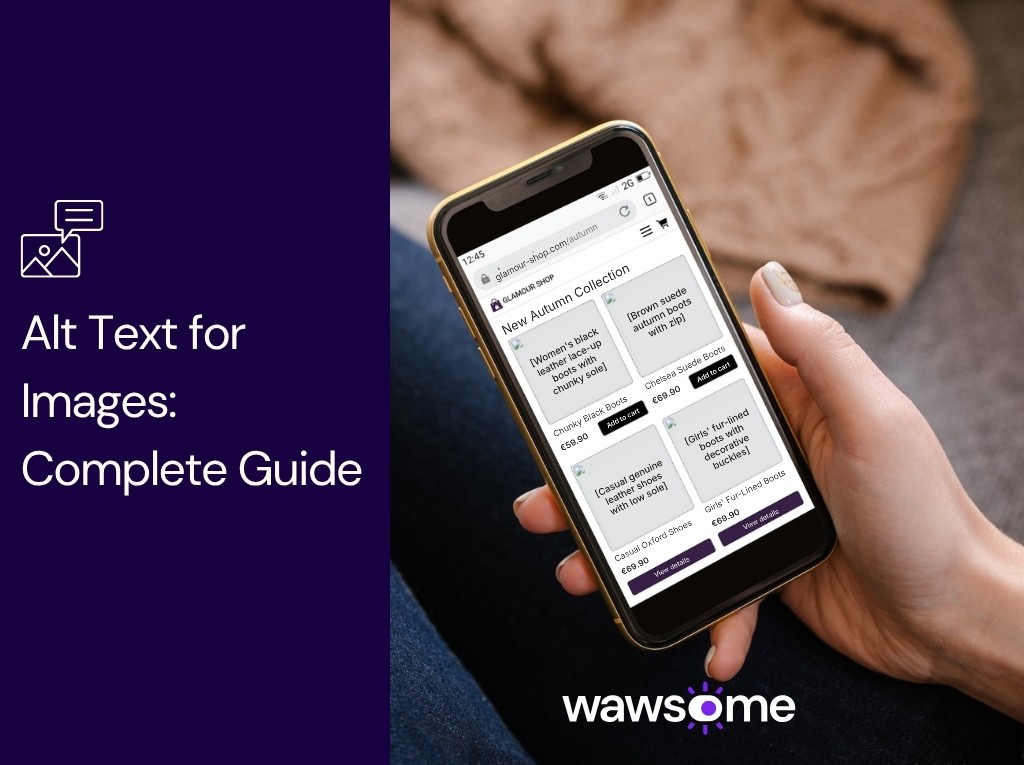
Alt text for images: a complete guide to writing and applying it under WCAG
Alt text is the text description of an image, added to the page code with the alt attribute. Screen readers read it aloud to blind users, browsers show it when the image fails to load, and Google uses it to understand what the image shows.
When you browse an online shop or read a technical article, images are the first thing you notice. Search engines and the screen readers used by blind and low-vision people can't read the pixels in a photo, though. They rely on the text behind the image file. Well-written alt text is the difference between a page that just looks good and a digital product that is accessible, well indexed and ready to sell.
Alt text isn't a small technical detail to tick off after you finish writing. It shapes how Google understands the visual content of a page. In e-commerce, where competition in image results is tough, good image optimization gives marketing and content teams a real edge.
What is alt text and why does it matter?
Alt text (short for alternative text) is the HTML attribute added to an image tag (<img alt="...">). Its main job is to give a text equivalent for any non-text visual element on a website.
When an image doesn't load because of a weak connection, the browser shows this description instead. Screen reader software also reads it aloud for people who are blind or have low vision.
Managing these descriptions carefully brings several benefits:
- Accessibility: People with visual disabilities understand what each image does on the page.
- Image SEO: Google can rank your images in Google Images and understand the context of the page.
- A protected user experience: Visitors still get the information when a slow mobile network struggles to load media.
- Confidence when buying: In online shops, an accurate description of product details helps shoppers know what they're choosing.
Alt text vs. file name vs. caption: what's the difference?
Many content teams mix up the image fields in CMSs like WordPress, Shopify or Magento. To keep your standards high, be clear about what each one does:
- File name: The name of the file saved on disk (for example, black-leather-stiletto-heels.jpg). Use keywords separated by hyphens and no special characters.
- Alt text: Read by screen readers and indexed by search engines. It isn't visible on the page unless the image fails to load.
- Caption: The text shown directly under the image, visible to every reader. It adds detail, photo credits or editorial context.
When does an image need alt text?
Not every image on a website carries the same information. The W3C guidance sorts images into three clear groups:
1. Informative images
These carry real information that adds to the text on the page: product photos, infographics, diagrams, screenshots or team portraits. They always need short, descriptive alt text.
2. Functional images
These are images inside buttons, navigation icons or links, such as a magnifying glass for search or a shopping cart. Their alt text describes the action, not the look (for example, alt="Search the site" instead of alt="Magnifying glass").
3. Decorative images
These are used only for design: visual dividers, backgrounds or shapes that carry no information. For these, the standard asks for an empty alt attribute (alt=""), so screen readers skip them and don't tire users with noise.
For the official guidance on sorting images, read the W3C images tutorial (World Wide Web Consortium).
What does WCAG require for images, and how do you apply it?
Under international accessibility standards, success criterion WCAG 1.1.1 (Non-text Content) is part of conformance level A. It requires every piece of visual content to have a suitable text alternative.
To apply the WCAG rules for images across your site, follow a few working rules:
- Keep descriptions short: Usually under 125 characters. WCAG sets no limit, but a long description is hard to follow when it's read aloud.
- Drop filler words: Don't start with "image of" or "photo of". The screen reader already tells the user it's an image.
- Use keywords naturally: Include your main search term only if it describes the image accurately. Avoid keyword stuffing.
- Stay objective: Describe only what is visible, without opinions or guesses.
How to write effective alt text for online shops and blogs
If you want to know how content professionals write alt text, start from the purpose of the page. A product in an online shop needs details about color, material and cut, while a blog post focuses on the idea the image illustrates.
Practical examples
Example 1: Fashion online shop
- Image: A pair of black faux leather boots with a block heel.
- Bad alt text (keyword stuffing): alt="cheap boots women boots black leather boots sale boots"
- Weak alt text: alt="boots.jpg"
- Good alt text: alt="Women's black faux leather boots with a block heel and zip"
Example 2: Complex infographic
- Image: A chart showing a shop's online sales growth over one year.
- Weak alt text: alt="Sales chart"
- Good alt text: alt="Line chart: online sales grow 25% in Q4"
For charts with a lot of data, put the key numbers in the page text or in a table too. The alt text sums up the point, and the details stay available to everyone.
How does alt text affect SEO?
Google uses the alt attribute, together with image recognition and the content of the page, to understand what an image is about. That makes alt text one of the clearest signals you can give it.
Google recommends placing images near relevant text and writing useful, information-rich descriptions without strings of keywords. Good alt text helps the page in organic results and gives it visibility in Google Images, a traffic channel many teams overlook. If an image holds important information, such as a chart, a table or key product details, missing alt text leaves both the search engine and the user without it.
For details on how Google handles images, read the Google Search image SEO guide.
Accessibility of images is also part of the legal picture in the EU. The full text of Directive (EU) 2019/882, the European Accessibility Act, is published on EUR-Lex, and our European Accessibility Act guide explains who it applies to.
How do you find and fix missing alt text on your site?
As an online shop grows to thousands of products, photo galleries and blog posts, checking every image by hand becomes very hard to keep up. Missing alt text hurts SEO and creates real barriers for screen reader users, which also means a risk of not meeting accessibility law.
Managing images at scale means moving from occasional checks to a structured process.
1. Run a technical audit to find hidden errors
Fixing media files by hand takes time your team could spend on strategic work. A dedicated accessibility audit finds not only images with no alt attribute at all, but also those with generic descriptions (like image01.jpg), raw file names or redundant text that makes life harder for screen reader users.
2. Prioritize the pages with the biggest business impact
Not every image matters equally for your business. A good analysis groups errors by how important the page is. Product pages, main categories, the checkout steps and high-traffic blog posts always come first.
3. Automate and simplify the workflow
Automated scanning helps you fix errors quickly, before they hurt your rankings or block people from using the site. If you run a platform with thousands of media files, the Wawsome widget can use AI to generate descriptions for images without alt text, which you review and control. Important descriptions, such as product images, still deserve a human check.
Once you map these gaps, your team has a clear action plan and an ongoing optimization routine. To cut the manual work, check your website's images and find missing alt text with the free Wawsome scan.
Frequently asked questions
1. What happens if an image has no alt attribute at all?
If the attribute is missing from the code, screen readers often read out the file path or image name (for example, DCIM_0045.jpg), which is a frustrating experience for the user.
2. How long should alt text be?
As long as it needs to be to carry the information, and no longer. WCAG sets no limit, but the usual advice is under 125 characters. For complex images such as charts, write short alt text and put the details in the page text.
3. Is it wrong to use the same keywords as in the page title?
Use the keyword if it describes the image naturally, but don't copy the page title or the H1 word for word. It creates repetitive content for screen reader users.
From a simple description to an inclusive content strategy
Writing good alt text isn't an optional admin task. It's a direct investment in the quality, readability and technical performance of your whole site. Every description you add helps blind and low-vision people browse without barriers and gives search engines clear data for indexing.
When accessibility becomes part of your marketing team's daily routine, it also changes how people see your brand. A proactive approach lowers the risk of non-compliance and opens your shop to every potential customer, however they use the web.
Getting your content ready for an inclusive web starts with a close look at what you already have. If you want to know exactly where the barriers are and what to fix first, explore Wawsome's accessibility audits and testing.
Sources